
5 Digital Accessibility Mistakes That Are Costing Your Business
Nearly 96% of top websites fail to meet basic accessibility standards. Discover five common accessibility errors businesses make—and how to avoid them.
Is your digital content excluding 1.3 billion people?
I hate to break it to you, but your website probably isn’t accessible. That’s not an accusation—it’s a statistic. In 2024, nearly 96% of the internet’s top million websites failed to meet basic accessibility standards, averaging 57 errors per page.
The implications are disheartening. With 1.3 billion people worldwide living with disabilities and 2.5 billion people using assistive technologies, digital accessibility is both an ethical and business imperative. And this isn’t just about websites—it’s about all digital content, from e-learning courses and PowerPoint presentations to all other digital documents.
Here’s the good news: While your competitors might struggle, you can lead the way by creating digital experiences that welcome everyone. In this article, we’ll explore five costly digital accessibility errors businesses make—and how to avoid them.
Key Takeaways
What is digital accessibility? A quick refresher
Digital accessibility ensures that your websites, applications, and digital technologies are designed for everyone to access, understand, and use. It’s as simple as that.
Just as you wouldn’t build an office without wheelchair ramps, creating digital content without accessibility features like screen reader compatibility and intuitive layouts is likewise impractical.

The cost of digital accessibility mistakes
Imagine launching a training course that 20% of employees can’t complete or creating an ad that potential clients can’t consume. These real scenarios highlight how inaccessible content can cost your business through:
- Legal exposure. Accessibility lawsuits are rising every year, putting companies at greater financial risk. In 2023 alone, thousands of businesses faced ADA-related digital accessibility lawsuits.
- Market loss. That 1.3 billion figure represents $8 trillion in disposable income. When your content isn’t accessible, you’re effectively saying “no thanks” to a massive market.
- Talent drain. Inaccessible tools and training can alienate skilled employees with disabilities, making it harder to attract and retain top talent.
- Brand damage. With 92% of consumers favoring businesses that prioritize accessibility, inaccessible content doesn’t just exclude users—it damages your reputation.
So, what exactly are companies getting wrong? Let’s explore five of the most common accessibility mistakes—and how to avoid them.
Mistake 1: Inaccessible color choices
Nearly 81% of websites have low-contrast text that people struggle to read. On top of that, many web pages make content even less accessible by solely relying on color to convey information or using overly bright backgrounds.
Poor color choices affect everyone—whether someone is colorblind, has low vision, is viewing your content in bright sunlight, or is just tired after a long day of screen time.
How to avoid it
Color accessibility is one of the easiest fixes you can make. Here’s how:
- Follow WCAG contrast requirements. The Web Content Accessibility Guidelines (WCAG) recommend a minimum contrast ratio of 4.5:1 for most text. Larger text (18pt or bigger) can meet a lower standard of 3:1—but why not aim for better readability across the board?
- Use contrast-checking tools. Tools like this color contrast checker let you test your color combinations in seconds—no math required. Plus, several other color-checking validators are also available for site-wide audits to help you identify issues at scale.
- Give multiple visual cues. Don’t rely on color alone to communicate meaning. Add an icon to that red error message, or use text alongside green success states. Color can highlight meaning, but it shouldn’t be the only way to convey it.
- Test with real users. Include people with diverse visual abilities in your testing process. Their insights on color choices and readability are invaluable for creating content that works for everyone. For example, at Articulate, we’ve partnered with accessibility experts Deque and Fable to make sure everyone has equal access to training and education.
Mistake 2: Writing bad alt text (or not writing it at all)
Alt text—short for alternative text—describes images to those who can’t see them. Built into an image’s HTML code, it enables screen readers to convey visual content, gives context when images fail to load, and helps search engines understand your visuals.
More than half of websites are missing alt text, but that’s only part of the problem. When companies do write it, they often get it wrong. Common offenses include writing overly verbose descriptions, omitting critical details, and jamming in keywords like “business team meeting office corporate.” The result? Assistive technology users and others who can’t see your images get a frustrating, incomplete experience.
How to avoid it
Writing effective alt text is a skill anyone can develop. Here’s how to get it right:
- Determine if alt text is needed. For purely decorative images, accessibility guidelines recommend using an empty attribute (“”) in the alt text field. However, if skipping alt text might make users feel excluded or leave them wondering about the image’s purpose, consider adding it. Even decorative photos can enhance the experience if they give meaningful context.
- Keep it concise. Aim to keep descriptions under 250 characters since screen readers and platforms often have character limits. Most screen reader users also prefer brief, focused descriptions. If an image requires a longer explanation, use a caption or include additional details in the surrounding content.
- Focus on clarity and relevance. Skip phrases like “This is an image of…” since screen readers already handle that. Instead, provide specific, contextual details that tie to the surrounding content. Also, reference recognizable places or people when relevant.
- Test for accuracy. Cover the image and read your alt text. Does it convey the image’s purpose and significance? If not, refine it until it does.
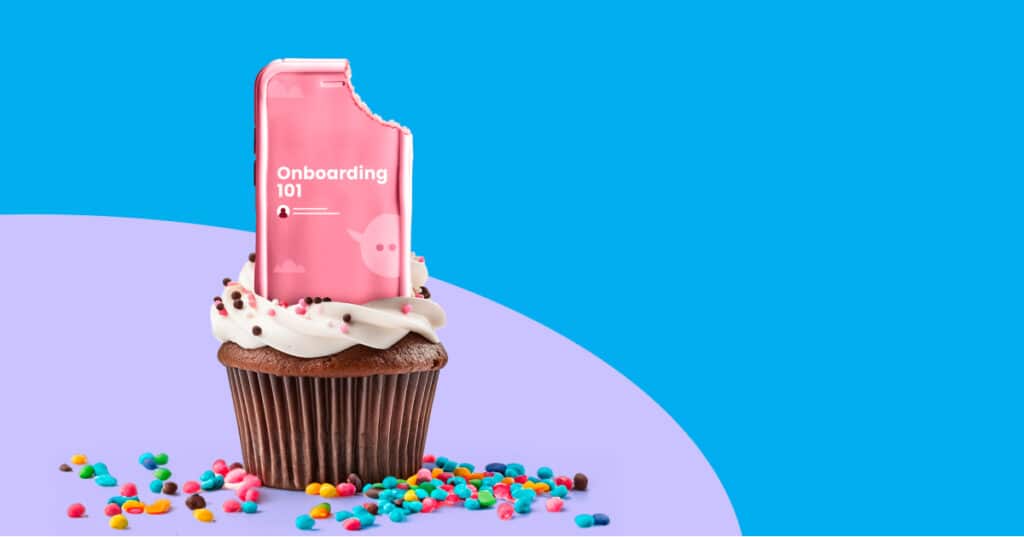
“A chocolate cupcake with white frosting and colorful sprinkles holds a pink, cookie-like phone containing an ‘Onboarding 101’ course. A bite taken from the phone symbolizes how microlearning helps learners digest complex topics.”
Mistake 3: Breaking the heading hierarchy
Many companies treat headings as simple formatting tools, but these markers aren’t just for making text bigger and bolder—they’re a vital roadmap for navigating your content.
Screen reader users rely on heading levels to skim content—jumping from one section to another. When companies skip heading levels or misuse them, they disrupt this structure.
How to avoid it
Creating a proper heading structure is simple. Here’s how to get it right:
- Use headings only for structure. Resist the urge to use headings to make text bigger or bolder. If you need to emphasize text, use other formatting options like callouts or bolding.
- Follow the hierarchy. Your heading structure should flow logically. Think of it as an outline where each level offers more detail about the one above it, like this:
- H1: Your page title (use only one per page)
- H2: Major sections
- H3: Subsections of H2
- H4: Subsections of H3
- Test your structure. Check out your headings in isolation. Do they clearly outline your content? Can someone understand your page’s organization by reading just the headings?
Mistake 4: Neglecting keyboard accessibility
Many people who have motor disabilities or use assistive technologies like screen readers or voice recognition software rely on keyboard navigation—using the tab, enter, and arrow keys to get around the user interface. Still, much digital content is designed exclusively for mouse navigation.
Imagine filling out a form where tabbing between fields jumps randomly across the web page. Frustrating, no? Issues like this can make a website unusable for keyboard-only users.
How to avoid it
Here’s how to check if your content is keyboard accessible:
- Navigate without a mouse. Every interactive element—buttons, links, form input fields, dropdowns—should be accessible via keyboard navigation. You can test this by navigating your content without a mouse. Can you reach everything with only the tab key, arrows, and return key? Can you escape modal dialogs?
- Keep focus visible. Users need to know where they are on your page—so ensure a clear visual indicator always shows which element has keyboard focus.
- Maintain logical order. Your tab order should follow a natural reading pattern. In most Western languages, that’s left to right, top to bottom, while languages like Arabic and Hebrew flow right to left. Regardless of language, if something appears first visually, it should be first in the tab order.
Mistake 5: Designing without everyone in mind
It’s not uncommon to make assumptions about how people use digital content. We might think we’re helpful when we write, “Click the orange button at the top” or “Use the menu on the left.” However, these instructions can confuse users who rely on assistive technologies, have color blindness, or access content on mobile devices.
How to avoid it
Creating inclusive content means thinking beyond our own ways of perceiving and interacting with digital spaces. Here are a few strategies for checking this mistake:
- Write location-independent instructions. Never assume elements will appear in the same place for everyone. Instead of “Click the button on the right,” say “Select the ‘Register’ button to continue.” This works regardless of screen size, device, or how someone accesses your content.
- Label interactive elements clearly. Give interactive elements like links, buttons, and form controls clear, descriptive text. Instead of vague link text like “click here” or “submit,” be specific. For example, “explore our pricing plans,” “submit registration form,” or “open settings menu.”
- Design with multiple senses in mind. Every piece of information should be accessible in multiple ways. Required fields? Mark them with both colors AND text. Navigation menus? Ensure they work with a mouse OR a keyboard.
Build digital spaces that welcome everyone
Digital accessibility means understanding and respecting how different people experience your content. Before making any design decision, pause and consider: How might different people interact with this content? What barriers might they face? And how can we eliminate those barriers?
Remember: When we design with everyone in mind, we create better experiences for all users, regardless of abilities. That’s not just accessibility—that’s good design.
Want to make accessibility a priority in your organization? If you’re wondering how we incorporate accessibility into our overall company ethos, I encourage you to check out this Accessibility at Articulate page for some inspiration.
You may also like

What Is a Job Aid? On-Demand Knowledge When Employees Need It Most
Learn how to create a relevant job aid, and discover 5 on-the-go learning formats to deliver precise knowledge exactly when employees need it.
What Is a Community of Practice—and Why Do E-Learning Pros Join Them?
Collective learning builds understanding and insight through shared experiences and open dialogue, benefiting community members and organizations alike.
How to Boost Sales Performance With Hybrid Training
Learn how to train your sales team with a hybrid approach that’s flexible, scalable, and performance-driven.