






How was the first aid exercise created?
5 Ways to Jump Start Your Next E-learning Project
July 2nd, 2007
Earlier, we looked at how to be an e-learning hero. Today, we’ll look at ways to jump-start your e-learning projects.
You’re asked to pull an e-learning course together within a couple of weeks. What do you do?
In the past, you may have told your customers that there isn’t enough time to build the training. Today, that’s not the case. E-learning allows you to say “yes” to your customer’s hurried requests.
While the tools do give you a head start, you’re still going to be pressed for time. Here are 5 simple tips to help you prepare for your next e-learning project.
E-Learning Project Tip: Create a Generic Training Template
If you have limited time to develop your e-learning course, you don’t want to spend days trying to determine an approach. With the right template, you can stay ahead of the game. It should include learning objectives, a structure to present the information, and a means to evaluate the learner’s understanding.
You might want to design two or more templates that consider various types of training. One could deal with presenting information in a linear manner. Another could address performance-based training where the user has to learn and apply skills. Regardless of how you structure your template, the main point is to have a design template ready to go.
Of course, with Articulate 360 and the included content library, you have more than enough templates to get started.
E-Learning Project Tip: Create Models for Learner Interactivity
It’s important to engage the learners from the real-world perspective. They want to know why the training is important to them. Interactive e-learning is one way to do that. Interactivity goes beyond just drag-and-drop features. It’s more about getting the learner to connect with (and think through) the information presented in the e-learning course. This could include case studies and problem-solving questions. There is a lot that can be done with interactions. They don’t need to be overly complicated to be successful.
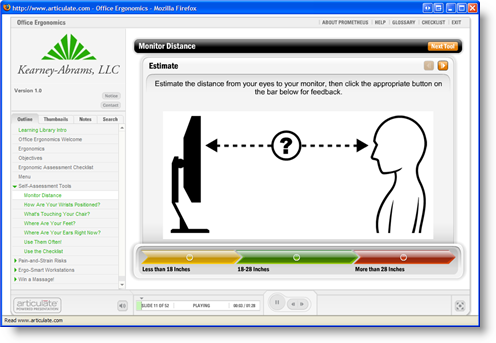
I like this ergonomics example from Prometheus created with a simple labeled graphic interaction. The users are engaged and need to make decisions based on the information presented. They also get immediate feedback after the decision is made. It’s a perfect example of an interaction that is effective and easy to design.
Look at what other people are doing (the weekly challenges are great for this) and make a list of interactions that work and that you could apply to your projects. Then when you start to look at your course content, you can pull from a list of proven interaction ideas. You won’t have to spend time trying to invent some.
E-Learning Project Tip: Create Some Style Themes and Templates
No matter what type of course you build, you’ll still need to have a specific look to it. The nice thing about using Articulate’s e-learning tools is that the player design is complete. You don’t have to spend a lot of time designing navigation features.
Even though the player is ready-to-go, there’s still a need to think through the overall look and feel of the training course. You can gain some ground if you pre-design templates with various layouts and color schemes, as mentioned above. There are a number of times where I’ve pulled one of my templates out of the drawer (so to speak) and the customer was happy with it and ready to go.
Even if you’re using a PowerPoint, you still have a lot of latitude in what you can do. The slides do not need to look like PowerPoint slides. Step away from the bullet points and treat the slide as a blank area and see what you can do.
The key is to have a few design ideas ready-to-go. This way you can put together a quick prototype without a lot of thought about the design.
E-Learning Project Tip: Collect Media Assets
It’s important to have the right images and visuals for your training courses. There are a few things you can do to get ready for your next project. If you’re using Articulate 360, you have access to templates, pictures, illustrations, videos, and icons. Take advantage of them. There are also all sorts of free stock images and resources to be had online.
Build a collection of images that fit the same style and look. You can group images together to create your own visual metaphors. In addition, you can change the colors of the images to match your template color theme.
It’s also a good idea to collect pictures of characters. Again, with Articulate 360, you get thousands of characters and avatars.
If you work in a production environment, you might want to go around and take pictures of the equipment and people working on it.
You can also use a photo editor to create your own graphics. Create boxes and arrows. Apply some effects to add a bit of pop to your screen. You can even build your own graphics in PowerPoint.
Having the right images is important. It’s also a time-consuming process. Start early and build your collection. When you need the image or ideas, you’ll have a great resource at your disposal.
E-Learning Project Tip: Create a list of questions to ask?
The better you are at asking questions and listening, the better you can design your e-learning course. When you’re in a rush, it’s easy to ask the wrong questions, or even to forget the right questions. Having a pre-determined list of questions you want to ask is important to getting the right e-learning course built.
Determine what you need to know about projects and create some questions. It’s also a good idea to condense the list to five key questions and forward that to the client before the meeting. This gives them a heads up on what you need to cover and might save some time.
Final Thoughts
You’re under a lot of pressure to meet deadlines and deliver results. Using Articulate’s e-learning tools plays a large role in getting your work done. The five tips above are some ways to help you speed up your e-learning project development.
This list isn’t exhaustive. What would you do?
In our next post, we’ll review what you should know about designing e-learning courses.
Events
- Everyday. Check out the weekly training webinars to learn more about Rise, Storyline, and instructional design.
Free E-Learning Resources
 |
 |
 |
|
Want to learn more? Check out these articles and free resources in the community. |
Here’s a great job board for e-learning, instructional design, and training jobs |
Participate in the weekly e-learning challenges to sharpen your skills |
 |
 |
 |
|
Get your free PowerPoint templates and free graphics & stock images. |
Lots of cool e-learning examples to check out and find inspiration. |
Getting Started? This e-learning 101 series and the free e-books will help. |

You might also like:
19 responses to “5 Ways to Jump Start Your Next E-learning Project”
Thank you for the quick response. I see it’s the Quandry tool.
How would you add the “timer” in PowerPoint? I understand how you could build the interaction with Hyperlinks in PowerPoint, but I wasn’t sure about the timer.
Thank you for the links.
It’s helpful to see examples of what others are creating. It gets the creative juices going for my upcoming safety project for a client.
I appreciate your efforts.
I love the design idea of the President’s Game. It took me a minute to figure out how you made it all look seamless — by copying the frame around the Quizmaker questions and duplicating it on your PPT slide template so the user doesn’t feel a shift when you switch products. This is a great idea!
Tom,
My organization is just entering into the realm of eLearning. We are working with SME’s who have very little if any exposure to eLearning. Tip #5 relates to asking the “right” questions. I always ask the standard questions: “What is the audience?” “What do you want the learner to be able to do differently as a result of this activity?”. Do you have any other suggestions?
I like the ideas shared in the book Performance Consulting
I agree that all it takes is to see what other developers are up to… not to mention I would really like to see where my elearning compares… anytips on where I can check out other projects???
Thanks
I would love to know what your top 5 questions would be?
I think that is an awesome idea and I would love to hear from others what their favorite client question is.
I learned the hard way, to ask WHAT STATE are you in?
I was halfway through booking a hotel reservation when I realized the client was in Portland OR, not Portland ME. I was in Massachusetts at the time. It would have been a long drive.
Susan
Tom – Our department recently started using Articulate and I came across this blog post today. It has been inspiring, to say the least. I would like to follow the same example as you had in the President’s game where you used a Quizmaker image as your background throughout the presentation so it was seamless to the user. Did you do a screen capture? I’ve been looking through the Articulate files and I haven’t found where this image is stored or created. How did you insert it into your PowerPoint file? I’ll feel really silly if this is something that is so easy, but it’s stumping me.
Thank you for providing such valuable information!
Scott
[…] 5 Ways to Jump Start Your Next E-learning Project (July 2, 2007) […]
To create a modles is basic the same as doing a powerpoint .But in the modles I have to add button to go interact one lesson with the the other .But I like the modles .It another way to not make the lesson boring. It take lot of time to do it .The link are very good to go in and evaluate them . Getting sound is a problem I have to work on.
The lesson are well explan. I havent waste my time in here .This is a good e-learning class in my house. Nice , if I have any doudt I will come in and refresh the lesson.
Thank you
[…] […]
Thank you for the information. Start your program with right attitude and you will see a big difference.
Thanks for all the helpful info. This is a fantastic resource.


0
comments